Printing
Print labels at exact size, in the browser or from a PDF.
Every preview dialog offers the same two paths: Print sends the label straight to your browser's print dialog, Download saves a PDF you can print from anywhere.
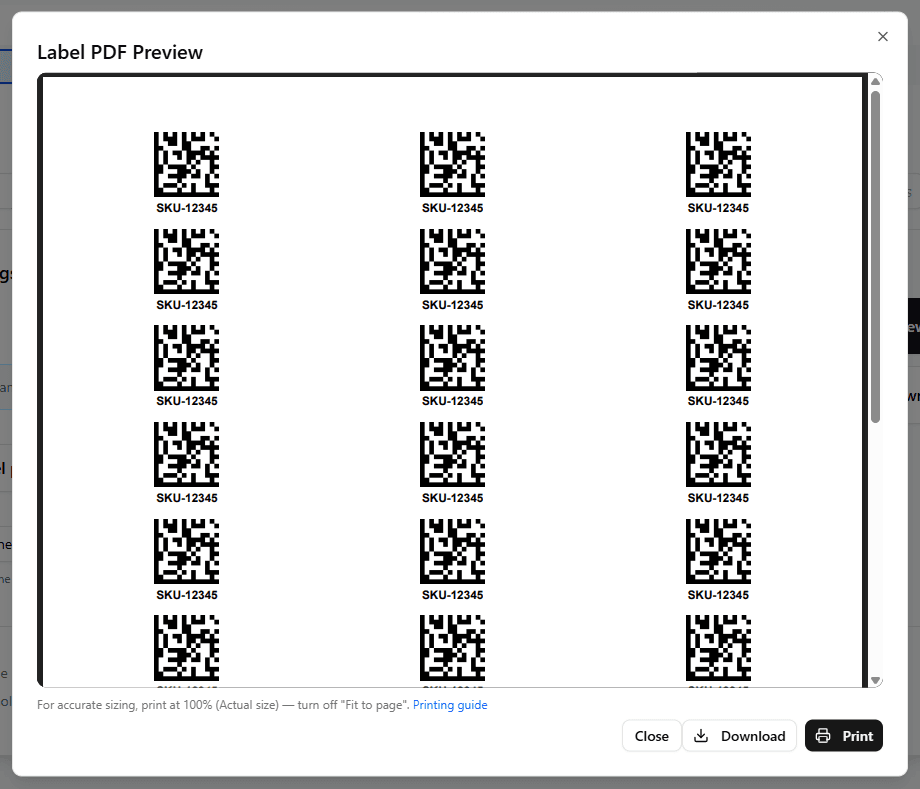
Browser printing
Use Print from the preview dialog to send labels straight to your printer. For exact sizing, the print dialog must not scale the page:
- For sheet layouts, set scale to 100% (Actual size) so labels align with the sheet.
- For single labels, set paper size to your label size and scale to 100% (Actual size) to match the preview.
Turn off 'Fit to page'
Page scaling resizes the barcode and throws off scanning accuracy. If a scanner can't read a printed barcode: check the printer isn't scaling the output, try a larger label size, and confirm the print has good contrast with no smudging.
PDF download
Download the PDF and print it from any PDF viewer. Each label is one page sized exactly to the label dimensions, so thermal printers (Zebra, Rollo, Brother, DYMO, and similar) pick up the size automatically without any scale adjustment.
Sheet layouts
For sheet labels (e.g. Avery address, shipping, or square/round labels on standard letter or A4 paper), use the sheet layout option in Basic mode to place multiple labels per page with correct margins and spacing for the selected template — see Sheet printing.
PrintNode integration
PrintNode support — silent printing to networked printers without a print dialog, useful for warehouse stations and kiosks — exists in the codebase but is disabled in the public hosted app and not currently exposed in the UI. If you need direct networked-printer integration, use the Developers API to generate the PDF or image and feed it into your own print pipeline in the meantime.