Basic Mode
Generate single barcodes or bulk labels from CSV in seconds.
Basic mode is the fastest way to go from a value to a printable label. Everything runs locally in your browser — no barcode data is ever sent to a server.
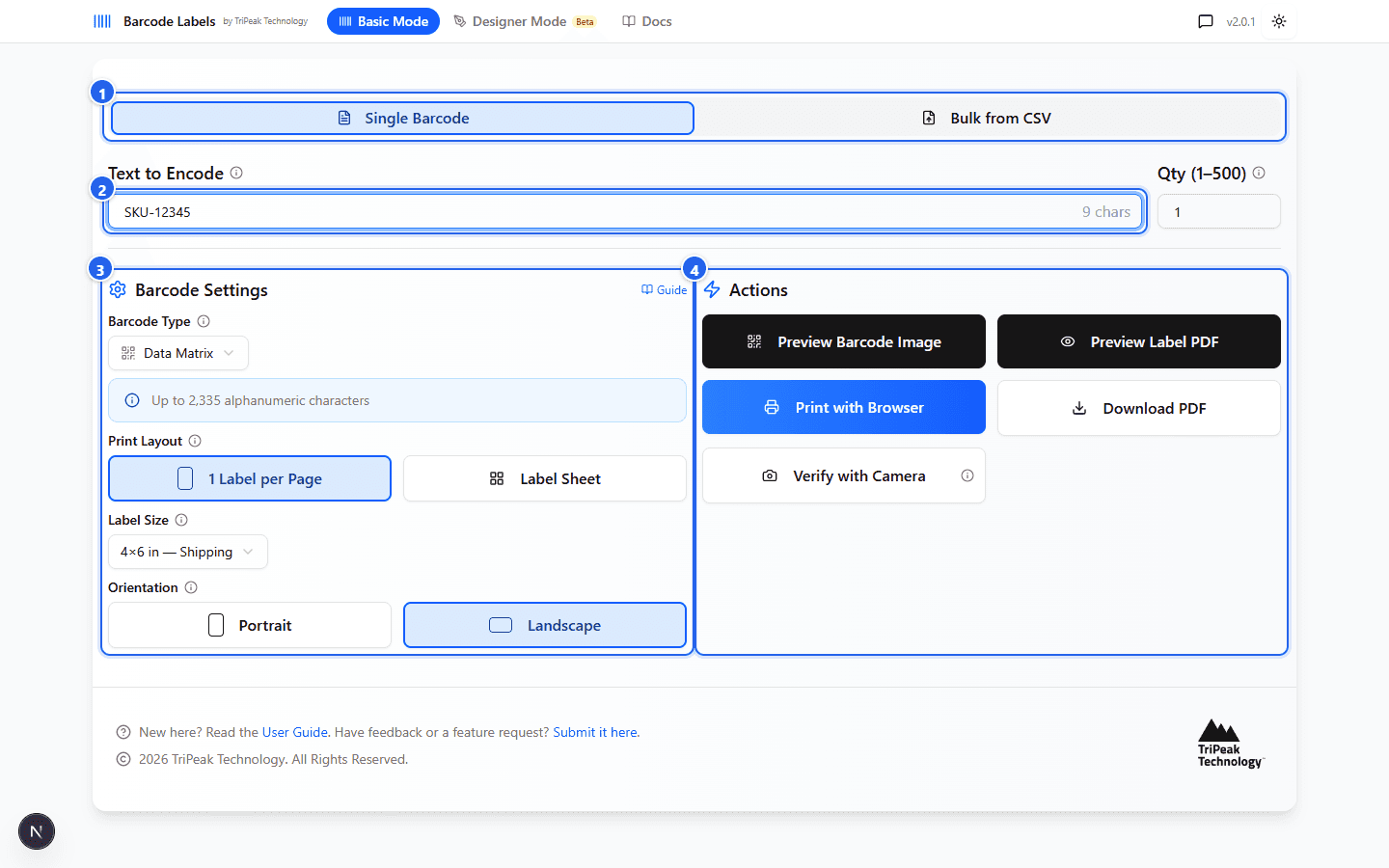
① Tabs switch between one barcode and a CSV batch · ② Input is the value your scanner will read · ③ Settings pick the barcode type, label size, and layout · ④ Actions preview, print, or download.
Single barcode
Enter your value
Select the Single Barcode tab ① and type the text to encode ② — a SKU, serial number, URL, or any text. Set Qty if you want multiple copies.
Choose barcode type, size, and orientation
In Barcode Settings ③, pick a barcode type, label size, and orientation. Barcode formats have different length limits, so the app recommends a compatible format based on what you typed — you can still pick any format manually.
Preview, then print or download
In Actions ④, click Preview Label PDF to see the full label (or Preview Barcode Image for just the barcode). Then Print with Browser or Download PDF.
Which type should I pick?
For product identifiers, serial numbers, or short text, Code 128 or Data Matrix scan reliably even at small sizes. For linear barcodes like Code 128, landscape orientation usually scans better; 2D barcodes (QR, Data Matrix) work well either way. See Barcode Types for the full rundown.
Bulk generation from CSV
Upload a CSV file to generate one label per row. Your CSV needs a header row — Excel and Google Sheets both include one when you export.
Upload your file
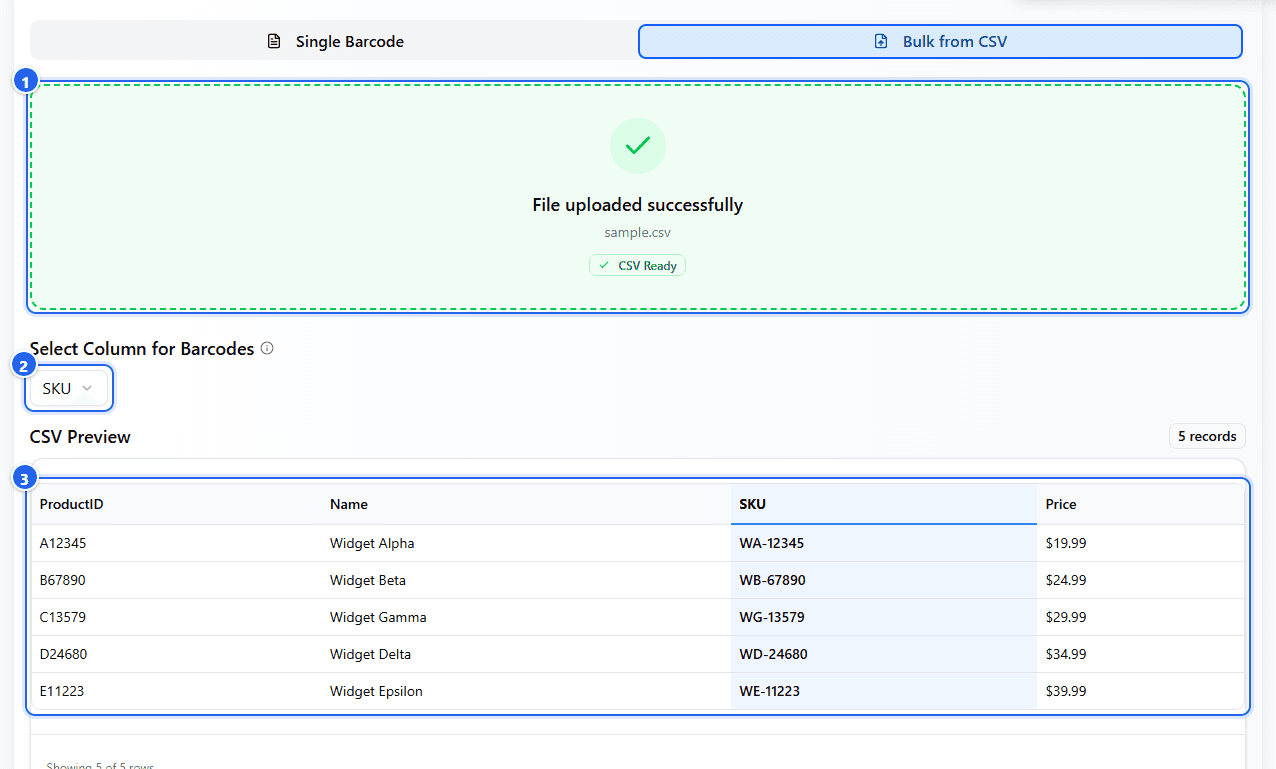
Select the Bulk from CSV tab, then drag your CSV onto the upload area ① or click it to browse.
Pick the barcode column
Choose which column becomes the barcode ②. The preview table ③ highlights it — every row in that column becomes one label; other columns are ignored.
Export one PDF for the whole batch
Configure the barcode type, label size, and orientation as usual, then Preview Label PDF and print or download — you get a single multi-page PDF, one label per row.
Example CSV:
ProductID,Name,SKU,Price
A12345,Widget Alpha,WA-12345,$19.99
B67890,Widget Beta,WB-67890,$24.99
C13579,Widget Gamma,WG-13579,$29.99
Very large batches
Hundreds of rows in one file is fine. Past ~1,000 labels, split into multiple CSV files for better browser performance.
Sheet printing
To print many labels per page on pre-cut label sheets (Avery 5160 address labels, 5163 shipping labels, and other common Avery and generic letter-size templates), switch Print Layout to Label Sheet and pick your sheet template:
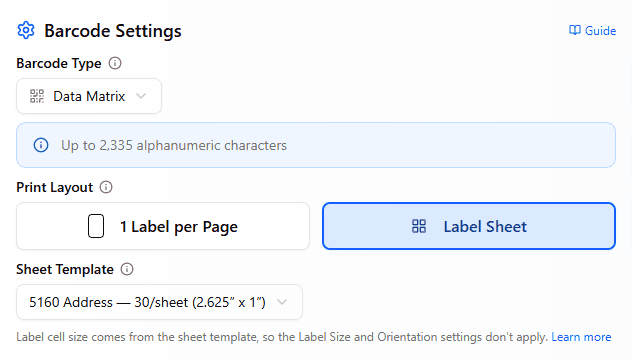
The labels are laid out in a grid with the correct margins and spacing for the selected template, so they line up with the pre-cut sheet on a standard printer. The label cell size comes from the template, so the Label Size and Orientation settings don't apply.
Print at 100%
Sheet layouts only line up when the print dialog doesn't scale the page — set scale to 100% (Actual size) and turn off "Fit to page". See Printing.
URL parameters
Pre-fill the generator by linking to the app with query parameters — useful for bookmarkable links or hooking the app up to another system.
https://barcodelabels.io/?text=SKU-123&type=code128&size=2x1&orientation=landscape&qty=4
| Parameter | Required | Values |
|---|---|---|
text | Yes | the value to encode |
type | Yes | code128, qr, microqr, datamatrix, upca, ean13, ean8 |
size | No | any supported label size, e.g. 4x6, 2x1, 50x30 (default: 4x6) |
orientation | No | portrait, landscape (default: landscape) |
qty | No | 1-500 (default: 1) |
Opening a link like this auto-populates the form and opens a PDF preview — it does not download automatically. Only the seven barcode types listed above are available in Basic mode; for the full symbology set (including UPC-E, Code 39, and ITF-14), use Designer mode or the API.
Generating barcodes from code?
The Developers API returns the image or PDF directly from a GET request — ideal for scripts and automation.