Designer Mode
Design custom labels with text, barcodes, shapes, and images.
Designer mode is a visual editor for building label layouts more complex than a single barcode — mixing text, barcodes, shapes, and images on one canvas.
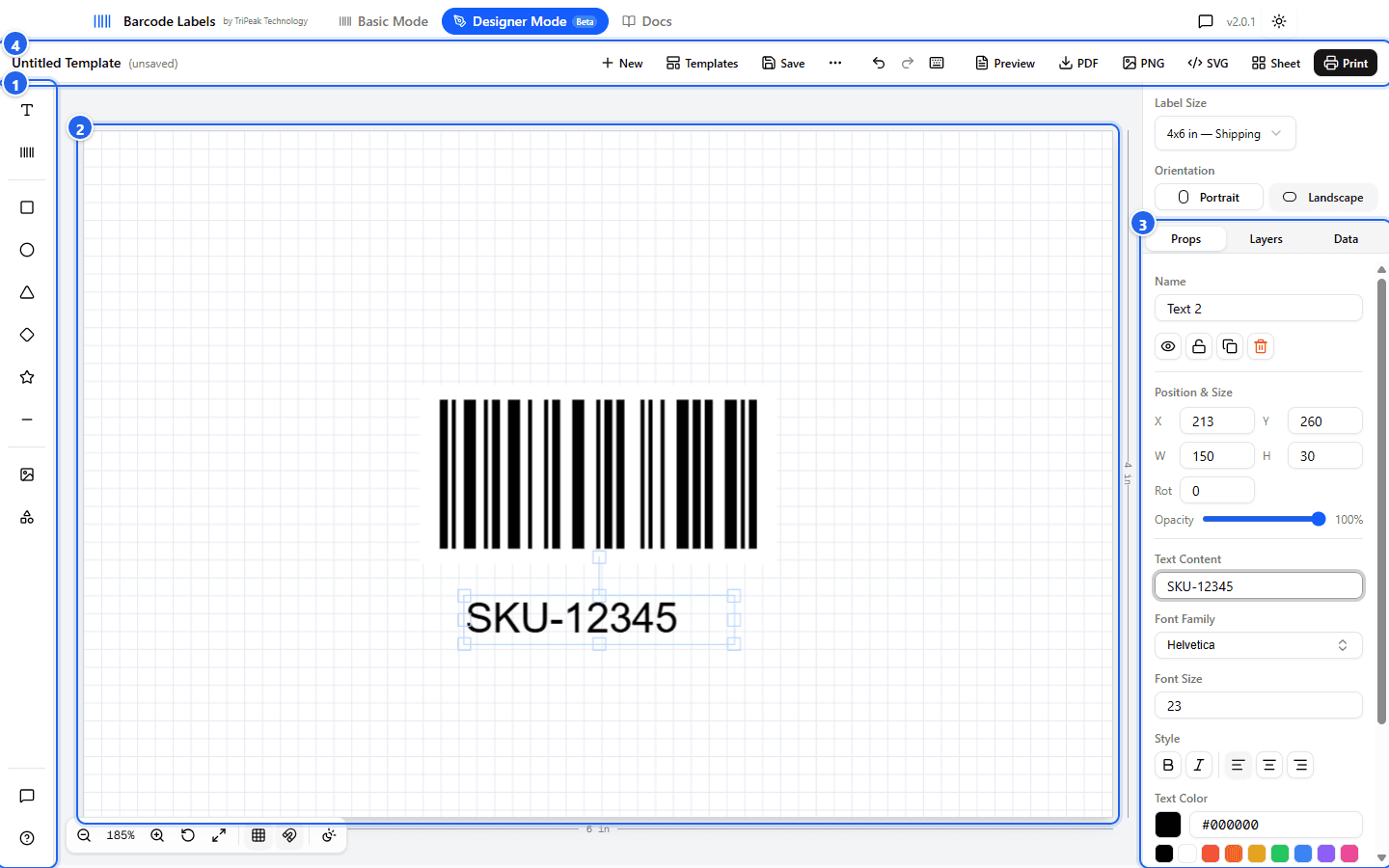
① Toolbar adds elements — text, barcodes, shapes, images, symbols · ② Canvas shows the label at true proportions; drag, resize, and rotate directly · ③ Panel edits the selected element's properties, layers, and CSV data · ④ Top bar holds templates, undo/redo, and export.
The canvas
Choose a label size (or set fully custom dimensions), then add elements from the toolbar. Elements can be dragged, resized, and layered directly on the canvas, with a live preview at actual label proportions. Right-click an element for quick actions, and use the overlay controls under the canvas for zoom, grid, and snapping.
Elements and properties
Every element has position, size, rotation, opacity, and layer (z-order) controls, editable either by dragging on the canvas or entering exact values in the properties panel ③.
- Text elements support custom fonts, including Google Fonts and fonts you upload yourself, plus size, weight, alignment, and color controls.
- Barcode elements support ten symbologies — the full set covered in Barcode Types & Label Sizes — with an optional human-readable text line beneath the barcode.
Data bindings and CSV
Any text or barcode element can pull its value from data instead of staying fixed. Select the element and choose a Data Source in the properties panel:
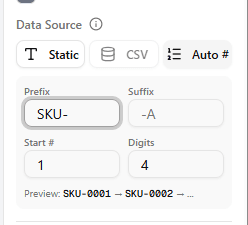
- Static keeps the value you typed.
- CSV binds the element to a spreadsheet column: upload a CSV in the Data tab, pick a column, and export one label per row using your layout.
- Auto # generates sequential values without a CSV — set a prefix, start number,
zero-padding width, and suffix, and each label gets the next value (
SKU-0001,SKU-0002, …).
Templates
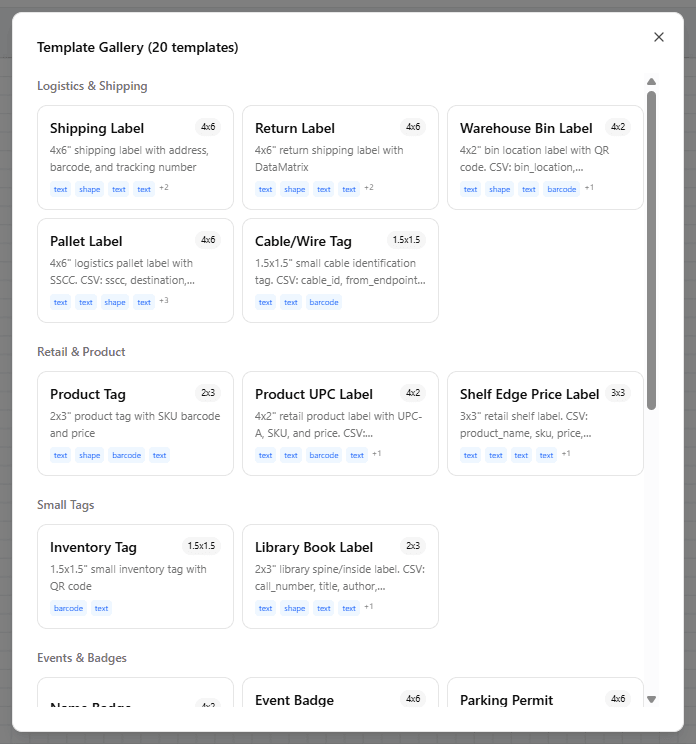
Start from one of 20 built-in templates — shipping labels, warehouse bin labels, asset tags, price tags, and more — or save your own designs to reuse later:
Templates stay in this browser
Saved templates live in your browser's storage — they never leave your device, and clearing browser data removes them. Use Export/Import (under the ⋯ menu) to back them up or share them with teammates. Cloud template storage with account sync is on the roadmap.
Exporting
Export labels as a PDF — a single page for one label, or a multi-page PDF when generating from CSV data or an auto-increment binding. You can also export the whole label as a standalone PNG or SVG image, for example to drop into another document or design tool.